Phone in Panic: Why Your iPhone is Stuck in SOS Mode
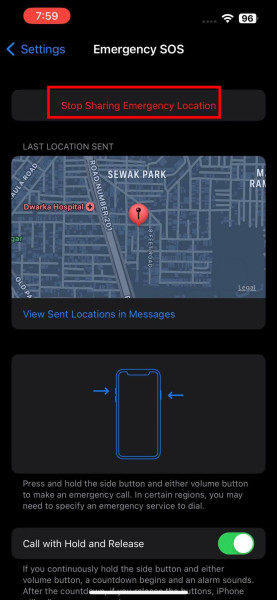
Picture this: your iPhone suddenly displays a worrisome SOS message, and you're left wondering why your phone is stuck in SOS mode. Let's not kid ourselves, nobody wants to be in this situation. Your device can still call emergency services, but what if you need to make a regular call or use data? You are suddenly disconnected from the world, except for emergency services. The panic is real, but let’s dive into the details and figure out how to get your phone back to normal.
Understanding SOS: Why Does Your iPhone Say SOS Only?
The dreaded SOS only message on your iPhone means that your device can only make emergency calls. This can be a frightening sight, especially if you are in a situation where you need to make a regular call or use data. The SOS only feature is designed to activate when your phone's cellular network connectivity is lost. This can happen for a variety of reasons, including weak network coverage, or a damaged or incorrectly inserted SIM card.
There are several reasons why your iPhone might display the SOS only message. It could be due to a faulty or weak network coverage, carrier issues, or a damaged or incorrectly inserted SIM card. Regardless of the cause, the message is a clear indication that your phone is having trouble connecting to a cellular network.
But here's what nobody's asking: why is the SOS only feature even there in the first place? The answer is simple: safety. Apple included this feature to ensure that even if your phone can't connect to a network, you can still call emergency services. It's a life-saving feature, but it can be frustrating when it's triggered unintentionally.
Troubleshooting SOS Mode: What to Do When Your iPhone Stays in SOS Mode
If your iPhone is stuck in SOS mode, there are several steps you can take to troubleshoot the issue. Here are some proven methods to get your phone back to normal:
- Restart your iPhone: Sometimes, a simple restart can resolve the issue.
- Toggle Airplane Mode: Turn on Airplane Mode and then turn it off. This can sometimes reset the network connection.
- Check your SIM card: Ensure that your SIM card is properly inserted and not damaged.
- Update your carrier settings: Sometimes, updating your carrier settings can resolve network issues.
- Reset network settings: This will erase all saved Wi-Fi networks and passwords, so be sure to remember them beforehand.
If these steps don’t work, you might need to contact your carrier. There could be an issue on their end that’s causing the problem. Let's not forget, carriers are notorious for having outages and network issues, so it's worth checking with them to see if there's a broader problem at play.
However, there's a counter-argument here. Some users report that updating their iOS version can also fix the SOS only issue. This suggests that the problem might be related to software bugs, which can be frustrating for users who are already dealing with a lack of network connectivity.
Preventing SOS Mode: How to Avoid Getting Stuck in SOS Again
To prevent your iPhone from getting stuck in SOS mode again, there are a few precautions you can take. First, ensure that your SIM card is properly inserted and not damaged. Second, keep your iPhone updated with the latest software and carrier settings. Finally, be aware of your network coverage and try to stay in areas with strong signal strength.
Remember, the SOS only feature is there to save lives, but it can be a major inconvenience when it's triggered unintentionally. By taking these precautions, you can minimize the risk of getting stuck in SOS mode and ensure that your iPhone is always ready when you need it.
And here's a fun fact: the SOS feature was actually introduced in iOS 11, but it wasn't widely publicized. It seems like Apple was so focused on the iPhone X and its Face ID feature that they forgot to give the SOS feature the attention it deserved. But let’s hope they pay more attention to it in the future, because nobody wants to be stuck in SOS mode.
The next time your iPhone shows the SOS message, don't panic. Use the troubleshooting steps outlined above to get your phone back to normal. And remember, the SOS feature is there for a reason, so let's appreciate it for what it is: a lifesaver in times of need.
How does this story make you feel?
 Up next · TechAugust 2026 PS Plus Reveals: Big Walk Leads the Charge